Overview
Macros are reusable, parameterized SQL or script snippets defined on a data source template and available to anyone creating tests on data sources that use that template. Instead of writing the same SQL pattern from scratch every time you need a row count check or a null percentage query, you define the pattern once as a macro with placeholders for the variable parts — schema name, table name, column name — and users fill in those values through intuitive, metadata-linked dropdowns during test creation.
Macros serve two purposes:
- Test Data Set macros — provide reusable query patterns that users select as data set sources when creating tests
- Standard Test Action macros — provide reusable scripts that execute as post-test actions (e.g., remediation queries, audit logging)
The difference between these two types is purely in where they're used. The creation process, parameter types, script syntax, and management workflow are the same for both.
How Macros Appear in Test Creation
This is the key value proposition of macros — the experience they create for users building tests.
When a user creates or edits a standard test and configures a data set, they can choose Macro as the data set source type instead of writing custom SQL. This presents a dropdown of all macros available on the template associated with the test's data source.
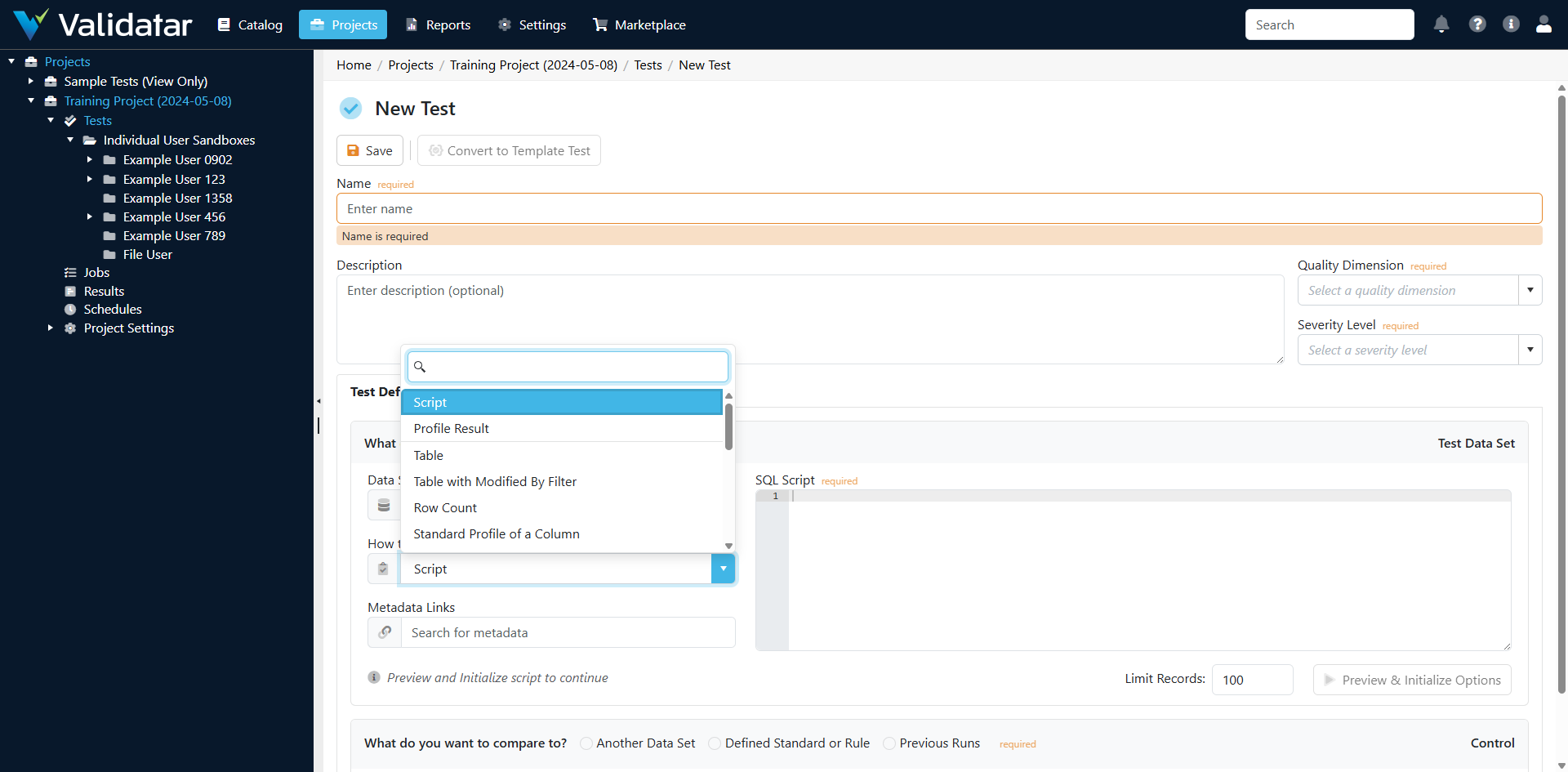
After selecting a macro, the user sees the macro's parameters. Each parameter appears as an input field — and here's where the metadata linking becomes powerful:
- A Schema parameter renders as a dropdown populated with all schemas from the data source's ingested metadata
- A Table parameter renders as a dropdown of tables, automatically filtered to the selected schema
- A Column parameter renders as a dropdown of columns, automatically filtered to the selected table
- A Dropdown parameter shows the predefined options defined on the macro
- A Free Text parameter provides a standard text input
This metadata-driven UI means users don't need to know the exact schema names, table names, or column names — they pick from what actually exists in the data source. No typos, no guessing.
Once all parameters are filled in, Validatar renders the macro script with the parameter values substituted in, giving the user a preview of the actual SQL or script that will execute.
Macro Syntax
Macro scripts use double-brace placeholders that reference parameter keys:
SELECT COUNT(*) AS row_count
FROM {{schema_name}}.{{table_name}}
WHERE {{column_name}} IS NULL;
At runtime, Validatar replaces each {{parameterKey}} with the value the user selected:
SELECT COUNT(*) AS row_count
FROM sales.orders
WHERE customer_id IS NULL;
The replacement is straightforward text substitution. The identifier delimiters defined on the template are applied separately when Validatar constructs the full query — so you don't need to add quoting in the macro script itself.
Parameter Types
Each macro parameter has a type that determines how it's presented to the user and what values are available:
| Type | UI Control | Source of Values |
|---|---|---|
| Free Text | Text input | User types any value |
| Schema | Dropdown | Schemas from the data source's ingested metadata |
| Table | Dropdown | Tables from metadata, filterable by parent schema |
| Schema and Table | Combined dropdown | Schema.table selection from metadata |
| Column | Dropdown | Columns from metadata, filterable by parent table |
| Dropdown | Selection list | Predefined options defined on the macro parameter |
Hierarchical Parameters
Parameters can have parent-child relationships that create cascading filters. This is one of the most useful aspects of macro parameter design:
- Define a Schema parameter
- Define a Table parameter with the Schema parameter as its parent
- Define a Column parameter with the Table parameter as its parent
When the user selects a schema, the table dropdown automatically filters to show only tables in that schema. When they select a table, the column dropdown shows only columns in that table. This cascading behavior is automatic — Validatar handles it based on the parent-child relationship you define.
Example hierarchy:
Schema Parameter: "schema_name" (type: Schema)
  └─ Table Parameter: "table_name" (type: Table, parent: schema_name)
       └─ Column Parameter: "column_name" (type: Column, parent: table_name)
Creating a Macro
Navigate to the template's Macros tab to see all macros defined on the template.
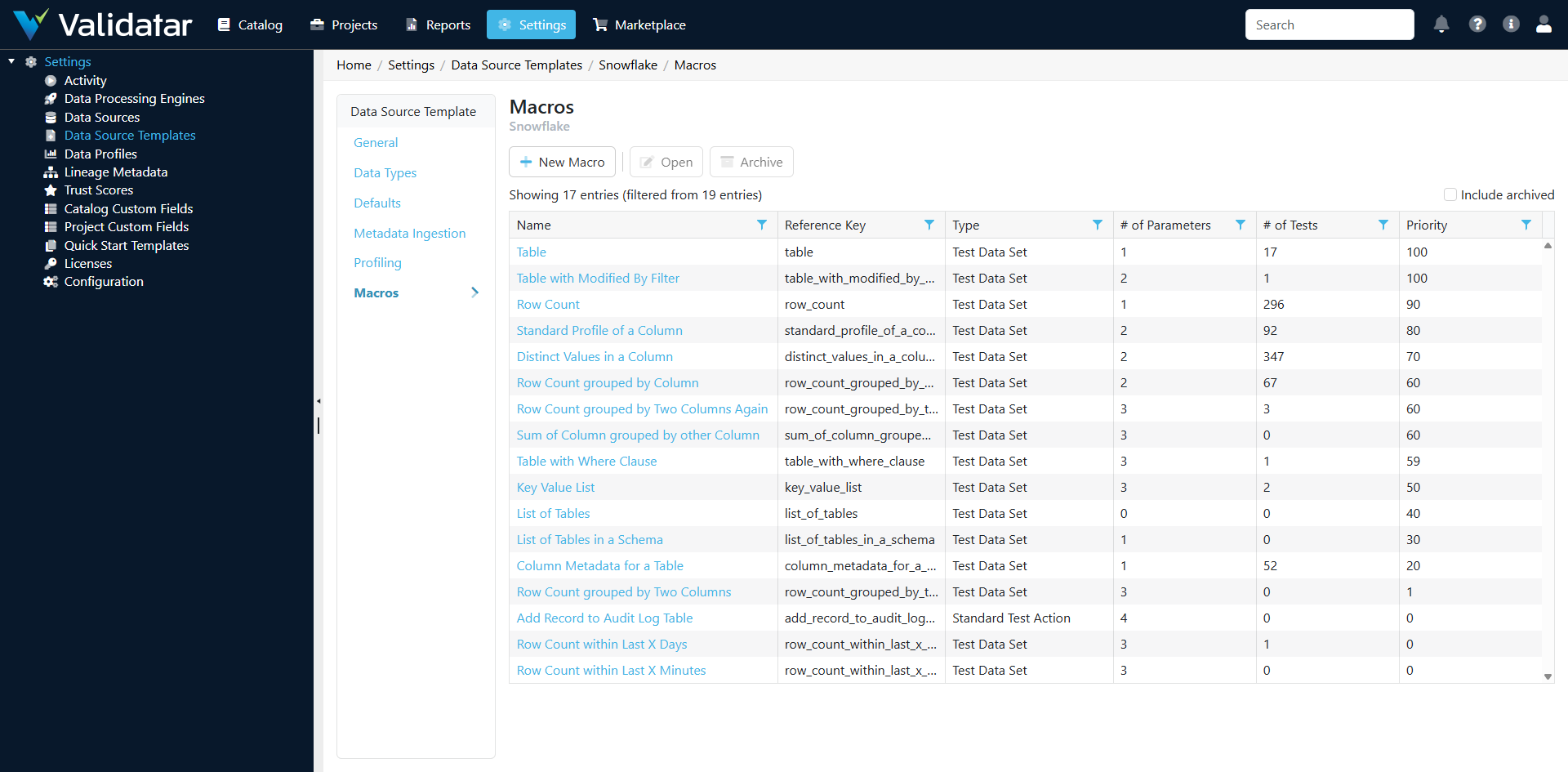
Click New to create a macro, or open an existing one to edit it.
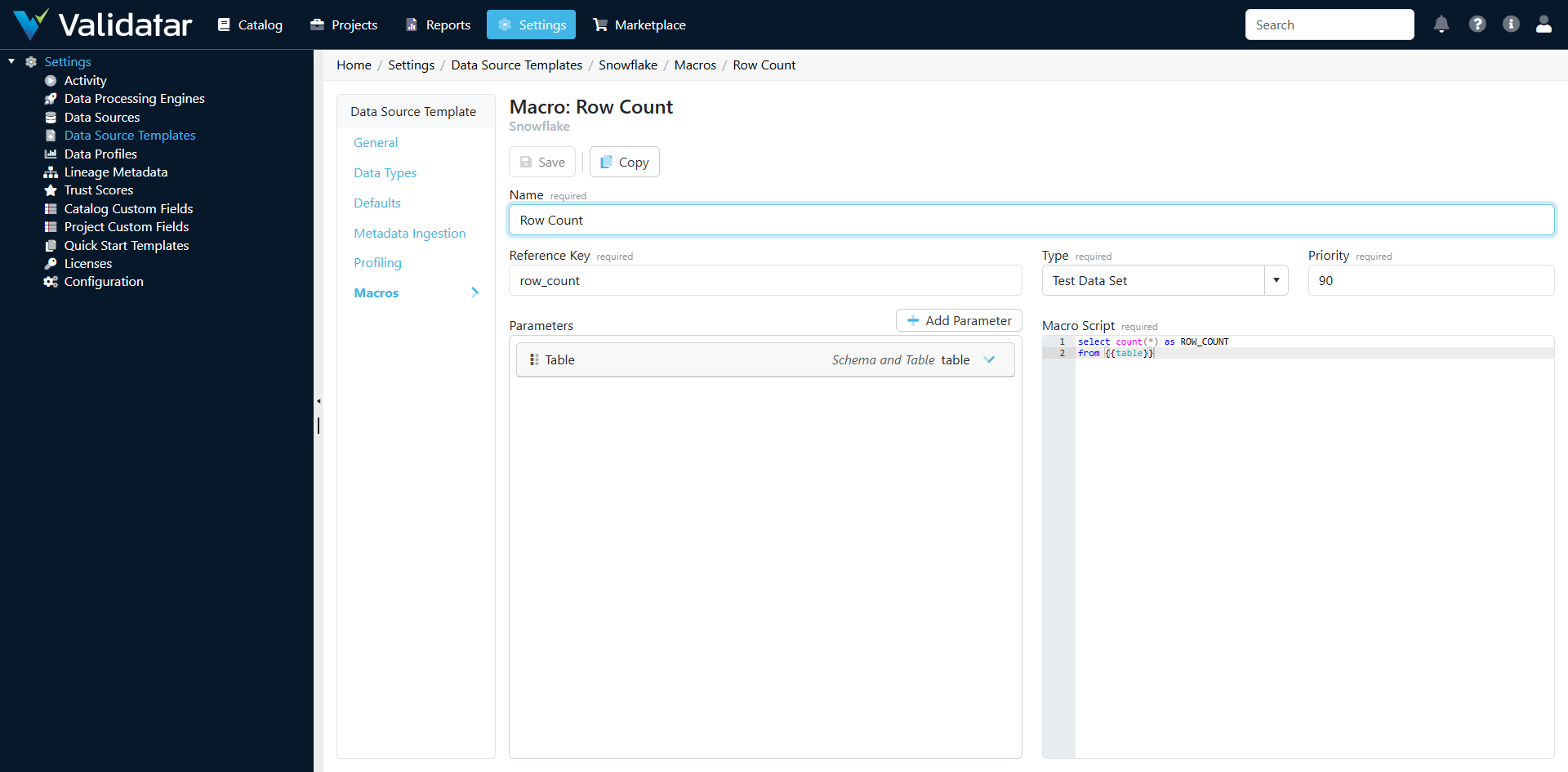
Macro Fields
| Field | Description |
|---|---|
| Name | Display name shown in the test creation dropdown (e.g., "Row Count", "Null Percentage Check") |
| Reference Key | Unique identifier used programmatically |
| Macro Type | Test Data Set (used as data set sources) or Standard Test Action (used as post-test action steps) |
| Priority | Execution order when multiple macros are used together. Lower numbers execute first. |
| Script | The SQL or script template with {{parameterKey}} placeholders |
Defining Parameters
On the macro detail page, add parameters in the Parameters section:
- Click Add Parameter
- Set the Name (display label), Reference Key (used in
{{key}}placeholders), and Type - For hierarchical parameters, set the Parent to the parameter this one depends on
- For Dropdown parameters, define the available Options
- Add Help Text to guide users when they're filling in the value
- Set the Sequence to control the order parameters appear in the UI
Tip: The sequence matters for user experience. Put parent parameters (Schema) before child parameters (Table, Column) so the cascading filter behavior feels natural.
Script Validation
When you save a macro, Validatar validates the script against the defined parameters:
- Every
{{parameterKey}}in the script must correspond to a defined parameter - Every defined parameter should be referenced in the script (unused parameters generate a warning)
- Parameter reference keys must be unique within the macro
Macro Types in Detail
Test Data Set Macros
When a user selects a Test Data Set macro as the source for a test's data set, the macro generates a query that returns the test or control data. The data set type determines how the results are interpreted:
| Data Set Type | What It Returns |
|---|---|
| SingleValue Numeric | A single numeric value (e.g., a count or sum) |
| SingleValue String | A single string value |
| SingleValue Date | A single date value |
| SingleValue Automatic | Validatar determines the type from the result |
| KeyValueList Numeric | A list of key-value pairs with numeric values |
| KeyValueList String | A list of key-value pairs with string values |
| KeyValueList Date | A list of key-value pairs with date values |
| KeyValueList Automatic | Validatar determines the type from the results |
The choice between SingleValue and KeyValueList determines whether the macro produces a scalar result (like a row count) or a result set (like a list of column names with their null counts).
Standard Test Action Macros
Action macros are used as steps in test action configurations. After a test executes and a condition is met (e.g., the test failed), an action trigger can fire a "Run Macro" step that executes the macro's script.
Common use cases for action macros:
- Remediation queries — automatically fix known data issues when detected
- Audit logging — write test results to an audit table
- Notifications — insert records into a notification queue
- Cascading execution — trigger downstream processes based on test results
Action macros have the same parameter and script structure as data set macros. The parameters are filled in when configuring the action step on the test.
Example: Building a "Null Percentage" Macro
Let's walk through creating a common macro step by step.
1. Define the Macro
- Name: Null Percentage Check
- Reference Key: null_percentage_check
- Macro Type: Test Data Set
- Priority: 1
2. Define the Parameters
| Parameter | Reference Key | Type | Parent | Help Text |
|---|---|---|---|---|
| Schema | schema_name | Schema | — | Select the schema containing the table |
| Table | table_name | Table | schema_name | Select the table to check |
| Column | column_name | Column | table_name | Select the column to check for nulls |
3. Write the Script
SELECT
    CAST(
        COUNT(CASE WHEN {{column_name}} IS NULL THEN 1 END) * 100.0
        / NULLIF(COUNT(*), 0)
    AS DECIMAL(10, 2)) AS null_percentage
FROM {{schema_name}}.{{table_name}};
4. Test It
Create a standard test, select "Macro" as the data set source, choose "Null Percentage Check", pick a schema → table → column from the dropdowns, and verify the rendered SQL looks correct.
Priority and Execution Order
When multiple macros are defined on a template, the Priority field determines the order they appear in the selection dropdown and the order they execute when used together in action configurations. Lower priority numbers appear and execute first.
Use priority to group related macros logically — for example, all row count macros at priority 1, all null check macros at priority 2, all distribution macros at priority 3.
Best Practices
- Name macros descriptively — Users see the name in a dropdown during test creation. "Row Count by Table" is better than "Macro 1".
- Use hierarchical parameters — The cascading dropdown behavior dramatically improves the user experience and reduces errors.
- Keep scripts focused — One macro should do one thing well. If a query pattern is complex, consider splitting it into multiple macros rather than making one macro with many parameters.
- Include helpful parameter text — Help text guides users who aren't familiar with the macro's purpose or the meaning of each parameter.
- Test with real data — Create a test using the macro on an actual data source to verify the generated SQL works correctly on the target platform.
- Consider platform differences — If you support multiple platforms, you may need platform-specific macros. A SQL Server date function macro won't work on Snowflake. Each template gets its own set of macros, so this is naturally handled by having separate templates.
How This Fits Into the Bigger Picture
Macros are the bridge between template-level platform knowledge and day-to-day test creation. They encode common query patterns so that users don't need to be SQL experts to create effective data quality tests. The metadata-linked parameter dropdowns connect macros to the data catalog populated by metadata ingestion, creating a seamless workflow from data source configuration to test execution.
For action macros specifically, they extend the value of macros beyond test definition into automated response — turning test results into actions.
For the complete view of how macros work alongside ingestion, profiling, and all other template components, see Data Source Templates: The Complete Picture.