Overview
Template fields are dynamic placeholders that resolve to values from the test execution context at runtime. They allow your action scripts, emails, and metadata values to reference the test's name, result, execution counts, URLs, and more — without hardcoding any of it.
Template fields use Handlebars syntax: {{field_name}}. When an action step executes, Validatar replaces each template field with the actual value from the completed test execution.
Where Template Fields Are Supported
| Step Type | Where Fields Are Available |
|---|---|
| Run a Script | The script text |
| Run a Macro | The macro's underlying script (after macro parameter substitution) |
| Send an Email | The email subject and body (not the recipients field) |
| Set Linked Object Metadata Value | The value field (for text-type custom fields) |
| Set Test Metadata Value | The value field (for text-type custom fields) |
| Run a Standard Test | Not applicable (no configurable text) |
Available Template Fields
Context Fields
These fields provide information about the test and its location within the project.
| Field | Description | Example Value |
|---|---|---|
{{project_name}} |
Name of the project containing the test | Sales Data Warehouse |
{{project_url}} |
URL to the project in Validatar | https://app.validatar.com/projects/42 |
{{folder_path}} |
Full folder path from the project root to the test's folder | Data Vault / Hub Tests |
{{folder_name}} |
Name of the test's immediate parent folder | Hub Tests |
{{folder_url}} |
URL to the test's folder in Validatar | https://app.validatar.com/projects/42/folders/15 |
{{test_name}} |
Name of the test | Hub Customer - Business Key Uniqueness |
{{test_url}} |
URL to the test configuration page | https://app.validatar.com/projects/42/folders/15/tests/301 |
{{execution_url}} |
URL to the specific execution result | https://app.validatar.com/projects/42/results/88/tests/1205 |
Result Fields
| Field | Description | Example Value |
|---|---|---|
{{result}} |
The test execution result | Passed, Failed, or Error |
Timing Fields
| Field | Description | Example Value |
|---|---|---|
{{start_date}} |
When the test execution started (formatted in the user's local time) | 3/27/2026 2:15 PM |
{{complete_date}} |
When the test execution completed | 3/27/2026 2:15 PM |
{{duration}} |
How long the execution took | 00:03:12 |
Error Fields
| Field | Description | Example Value |
|---|---|---|
{{errors}} |
List of error messages from the execution (if any) | Error messages from the test, batch, source script, or target script executions |
Count Fields — Top Level
| Field | Description |
|---|---|
{{passed_count}} |
Total number of passed evaluations |
{{failed_count}} |
Total number of failed evaluations |
{{error_count}} |
Total number of errored evaluations |
Count Fields — Row Level
| Field | Description |
|---|---|
{{test_row_count}} |
Number of rows returned by the test data set |
{{control_row_count}} |
Number of rows returned by the control data set |
Count Fields — Matched Rows
These fields apply to comparison tests where rows are matched between the test and control data sets.
| Field | Description |
|---|---|
{{matched_row_count}} |
Number of rows successfully matched between data sets |
{{matched_passed_count}} |
Matched rows that passed evaluation |
{{matched_failed_count}} |
Matched rows that failed evaluation |
{{matched_error_count}} |
Matched rows that errored during evaluation |
Count Fields — Unmatched Test Rows
Rows from the test data set that did not match any row in the control data set.
| Field | Description |
|---|---|
{{unmatched_test_passed_count}} |
Unmatched test rows that passed evaluation |
{{unmatched_test_failed_count}} |
Unmatched test rows that failed evaluation |
{{unmatched_test_error_count}} |
Unmatched test rows that errored during evaluation |
Count Fields — Unmatched Control Rows
Rows from the control data set that did not match any row in the test data set.
| Field | Description |
|---|---|
{{unmatched_control_passed_count}} |
Unmatched control rows that passed evaluation |
{{unmatched_control_failed_count}} |
Unmatched control rows that failed evaluation |
{{unmatched_control_error_count}} |
Unmatched control rows that errored during evaluation |
Helper References
In addition to template fields, the script editor in action steps provides access to helper references — the same Handlebars helper functions available in template test scripting. These enable more advanced logic within your action scripts.
For the full list of available helper functions, see [Template Test Functions]().
Using the Autocomplete
The script editor and the email body editor both support autocomplete for template fields and helper references:
- Type
{in the editor. - A popup appears listing all available template fields and helper references.
- Use the arrow keys to navigate the list, or continue typing to filter.
- Press Enter or Tab to insert the selected field.
The autocomplete inserts the full Handlebars expression (e.g., {{test_name}}) at the cursor position.
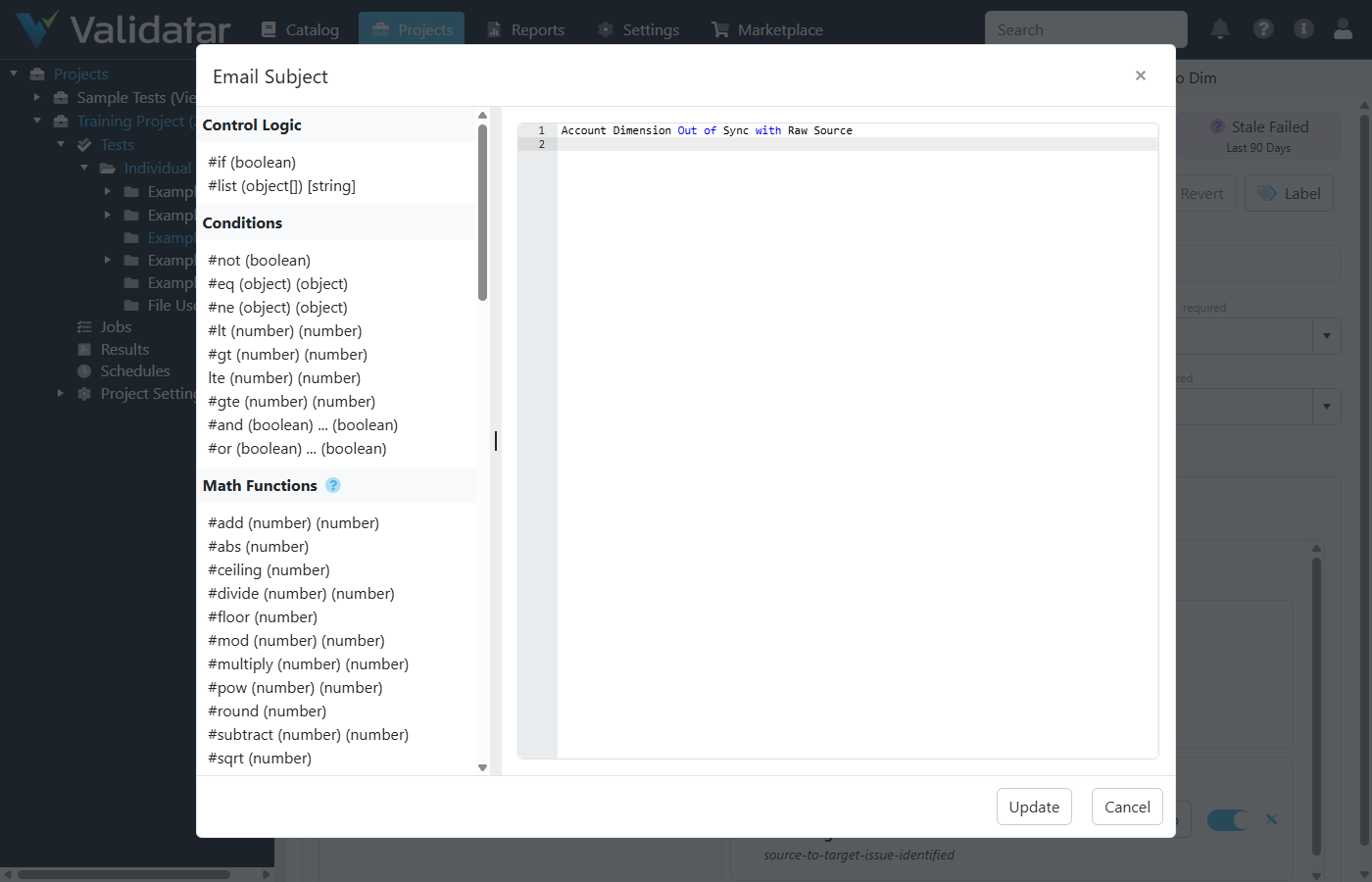
You can also open the template fields helper by clicking the helper icon next to text fields that support template fields. This opens a full reference panel with all available template fields, helper functions, and a code editor.
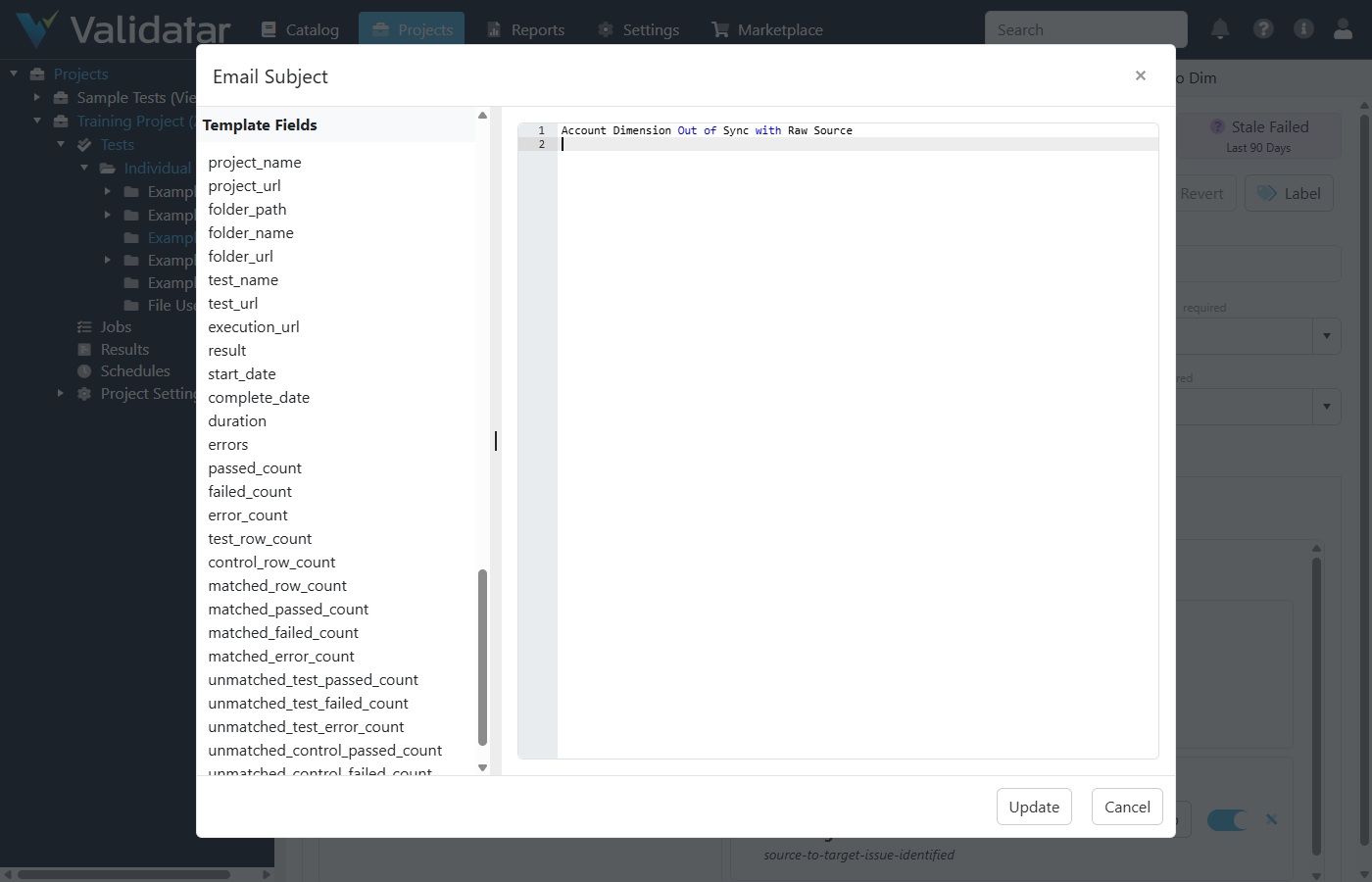
Scroll down in the helper panel to see all 28 template fields available for insertion:
Examples
SQL Script: Log Test Results to an Audit Table
A "Run a Script" step that inserts the test result into a custom audit table after each execution:
INSERT INTO dq_audit.test_execution_log (
    project_name,
    test_name,
    result,
    started_at,
    completed_at,
    duration,
    passed_count,
    failed_count,
    error_count,
    execution_url
)
VALUES (
    '{{project_name}}',
    '{{test_name}}',
    '{{result}}',
    '{{start_date}}',
    '{{complete_date}}',
    '{{duration}}',
    {{passed_count}},
    {{failed_count}},
    {{error_count}},
    '{{execution_url}}'
);
SQL Script: Create a Ticket in an External System via API
A "Run a Script" step using Python to call a JIRA API when a critical test changes status to "Now Failing":
import requests
import json

url = "https://your-domain.atlassian.net/rest/api/2/issue"
headers = {
    "Content-Type": "application/json",
    "Authorization": "Basic YOUR_API_TOKEN"
}

payload = {
    "fields": {
        "project": {"key": "DQ"},
        "summary": "Data Quality Alert: {{test_name}} is Now Failing",
        "description": (
            "Test *{{test_name}}* in project *{{project_name}}* "
            "has changed status to Now Failing.\n\n"
            "Result: {{result}}\n"
            "Failed Count: {{failed_count}}\n"
            "Execution: {{execution_url}}"
        ),
        "issuetype": {"name": "Bug"},
        "priority": {"name": "High"}
    }
}

response = requests.post(url, headers=headers, data=json.dumps(payload))
Email: Notify on Status Change
A "Send an Email" step with template fields in the subject and body:
Subject:
Data Quality Alert: {{test_name}} — {{result}}
Body:
The test {{test_name}} in project {{project_name}} has changed status.

Result: {{result}}
Started: {{start_date}}
Completed: {{complete_date}}
Duration: {{duration}}

Passed: {{passed_count}}
Failed: {{failed_count}}
Errors: {{error_count}}

View the execution details: {{execution_url}}
Metadata Value: Stamp a Linked Object
A "Set Linked Object Metadata Value" step on a text-type custom field called "Last Test Result":
Value:
{{result}} — {{test_name}} ({{complete_date}})
This sets the linked object's custom field to something like: Failed — Hub Customer BK Uniqueness (3/27/2026 2:15 PM).
Tips
- String values need quotes in SQL. When using template fields inside SQL string literals, wrap the field in single quotes:
'{{test_name}}'. Numeric fields like{{passed_count}}do not need quotes. - Preview before saving. For "Run a Script" and "Run a Macro" steps, use the Preview button to see the script with template fields resolved and verify the output.
- Template fields in metadata values work only with text-type custom fields. For dropdown, tag list, or user/group list fields, you select from predefined options rather than entering free text.
- The recipients field in email steps does not support template fields. Enter email addresses directly.
What's Next
- What are Test Actions — overview of test actions, triggers, and steps
- Configuring Simple Test Actions — step-by-step guide to creating triggers and steps