Overview
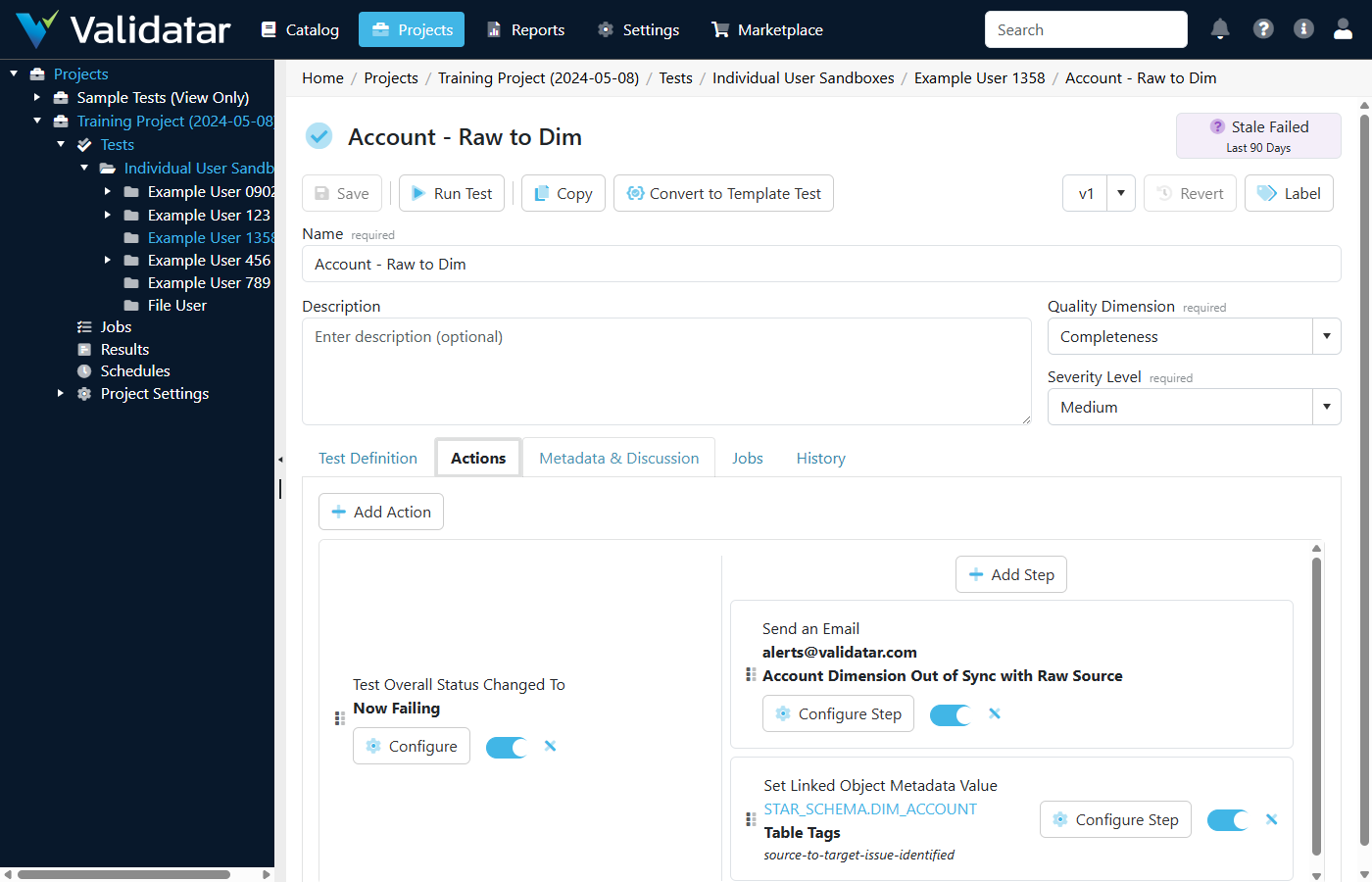
Test Actions allow you to automate responses to test execution outcomes. When a standard test runs and produces a result, test actions can take follow-up steps within Validatar or against a connected data source — dynamically informed by the test's execution context.
Actions are composed of two parts:
- Triggers define when the action should fire (e.g., when a test runs, when it fails, or when its overall status changes).
- Steps define what should happen when the trigger fires (e.g., run another test, execute a script, send an email, or update metadata).
A single test can have multiple triggers, and each trigger can have multiple steps. This makes test actions flexible enough to handle simple notifications as well as complex multi-step workflows.
Note: Test actions are currently available on standard tests. Support for template tests is actively in development.
Key Concepts
Triggers
A trigger defines the condition that causes the action to fire. Every action starts with exactly one trigger, and that trigger can have one or more steps attached to it.
| Trigger Type | When It Fires |
|---|---|
| Test Ran | Every time the test executes, regardless of the result |
| Test Resulted In | When the test execution produces a specific result: Passed, Failed, or Error |
| Test Overall Status Changed To | When the test's overall status actually transitions to a new value as a result of this execution |
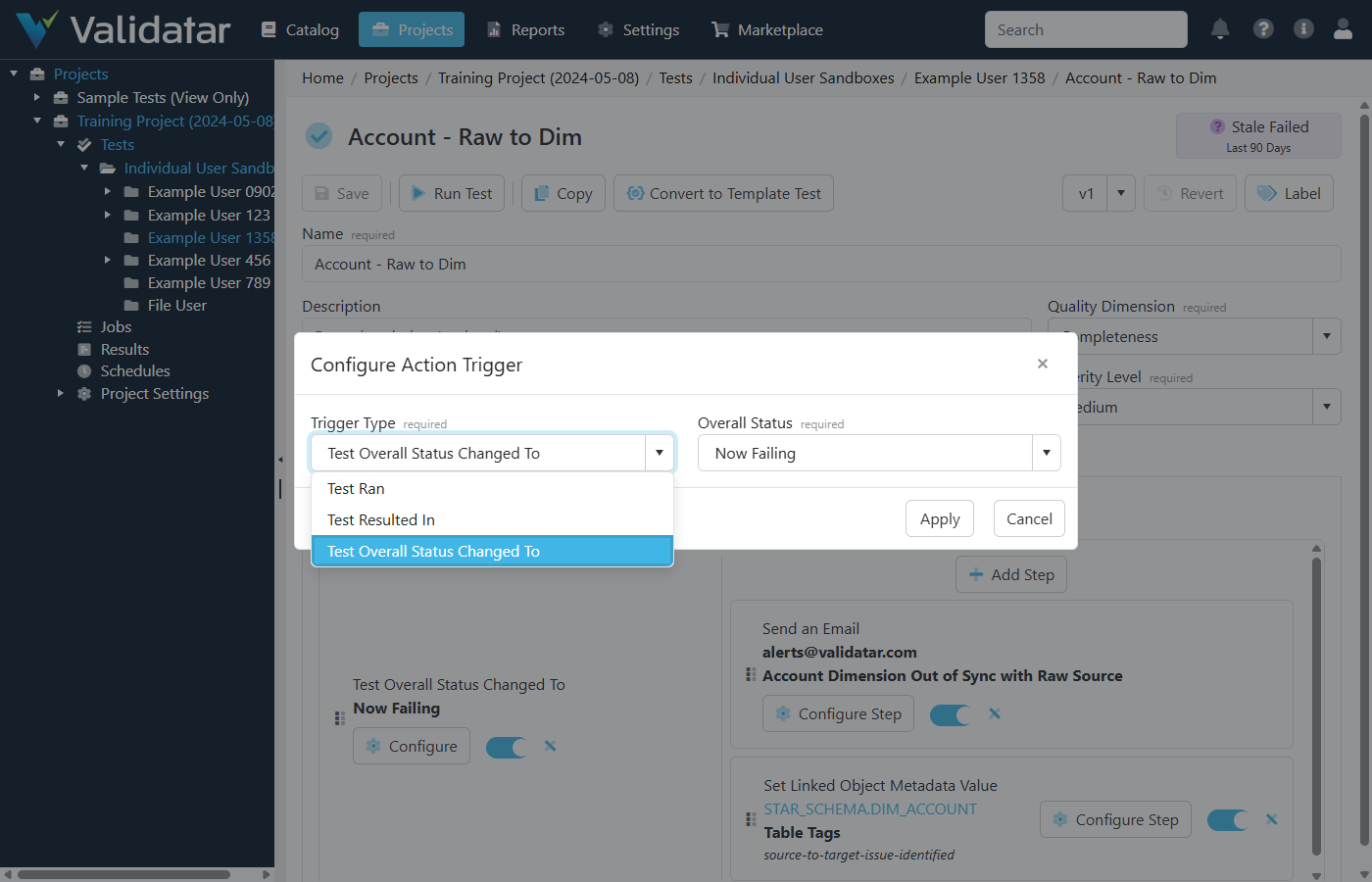
The distinction between Test Resulted In and Test Overall Status Changed To is important:
- Test Resulted In fires based on the outcome of each individual execution. If a test fails twice in a row, a "Test Resulted In: Failed" trigger fires both times.
- Test Overall Status Changed To fires only when the overall status actually transitions. If a test's overall status is already "Consistent Failing" and it fails again with no status change, the trigger does not fire.
Steps
Steps define what happens when a trigger fires. Each trigger can have multiple steps, which execute sequentially in the order they are arranged.
| Step Type | What It Does |
|---|---|
| Run a Standard Test | Executes another standard test in the same project |
| Run a Script | Runs a SQL or Python script against a selected data source |
| Run a Macro | Executes a pre-written macro from the data source template, with configurable input parameters |
| Send an Email | Sends an email notification to specified recipients |
| Set Linked Object Metadata Value | Updates a custom field value on a metadata object (schema, table, or column) linked to the test |
| Set Test Metadata Value | Updates a custom field value on the test itself |
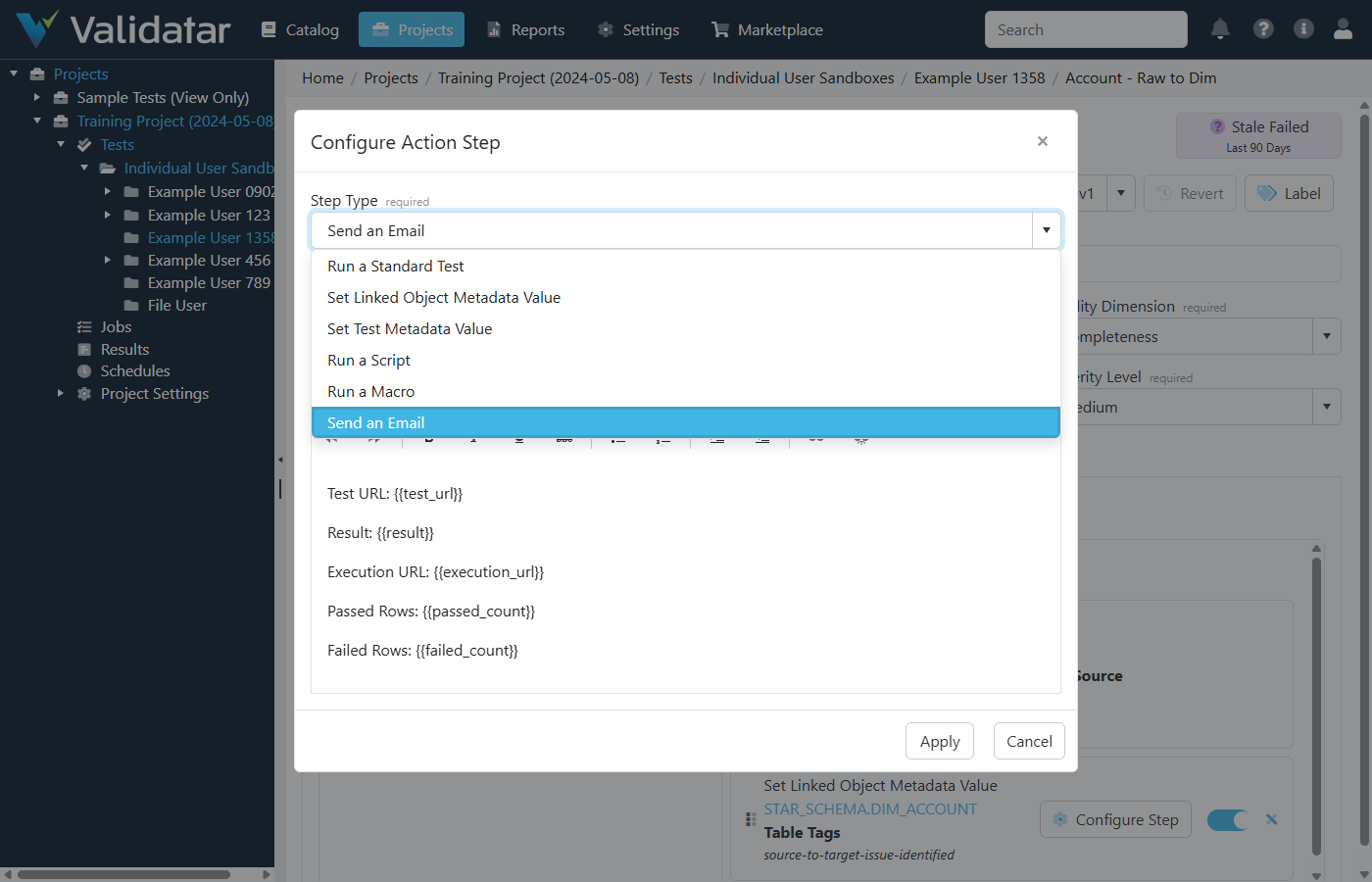
Most step types support template fields — dynamic placeholders like {{test_name}} or {{result}} that are resolved from the test execution context at runtime. For details, see Using Template Fields in Test Actions.
Triggers and Steps Work Together
A typical action configuration looks like this:
Trigger: Test Overall Status Changed To → Now Failing
  Step 1: Send an Email to the data engineering team
  Step 2: Run a detail-level comparison test
  Step 3: Set the linked table's "Quality Status" field to "Needs Investigation"
You can have multiple triggers on the same test, each with their own steps:
Trigger 1: Test Resulted In → Error
  Step 1: Send an Email to the platform admin

Trigger 2: Test Overall Status Changed To → Now Failing
  Step 1: Run a Script that creates a JIRA ticket
  Step 2: Set Linked Object Metadata to flag the table
Common Use Cases
Run Detail Tests After a High-Level Test Fails
A fast, high-level row count test runs as part of a scheduled job. If it fails, a "Run a Standard Test" step triggers a more detailed comparison test to identify the specific rows that differ. This keeps scheduled runs fast while still providing drill-down detail when problems are found.
Create Tickets in External Systems on Status Changes
When a critical test's overall status changes to "Now Failing," a "Run a Script" step executes a SQL or Python script that calls an external API (such as JIRA or ServiceNow) to create an incident ticket. Template fields like {{test_name}}, {{result}}, and {{execution_url}} populate the ticket with relevant context.
Notify Teams on Nuanced Status Changes
Rather than sending an email on every failure, a "Test Overall Status Changed To" trigger with a "Send an Email" step notifies the team only when meaningful transitions happen — for example, when a test moves to "Now Failing" or "Intermittent Failures." Template fields in the subject and body provide execution details without requiring the recipient to log in.
Tag Metadata Objects Based on Test Results
When an informational test runs, a "Set Linked Object Metadata Value" step tags the linked table or column with a quality indicator (e.g., setting a "Data Quality Status" field to "Warning" or "Needs Research"). This keeps the Data Catalog up to date with the latest test-driven assessments.
Post to External Data Catalogs
A "Run a Script" step can execute a script that calls an external data catalog's API to report that a particular object has a quality issue, keeping downstream consumers informed without manual intervention.
How Actions Fit Into Test Execution
Actions run automatically after a test execution completes. The flow is:
- A standard test executes (via a job, schedule, or manual run).
- Validatar evaluates the test result and determines whether the overall status changed.
- Each trigger on the test is evaluated against the execution outcome.
- For each trigger whose condition is met, the associated steps execute sequentially.
- If a step fails, subsequent steps in the same trigger still execute.
Tests triggered by a "Run a Standard Test" step execute as a separate batch — they do not run within the parent test's batch context.
Prerequisites
- Creator-level access is required to configure test actions on a test.
- SMTP configuration is required if you plan to use the "Send an Email" step. See SMTP Settings for setup instructions.
- Metadata links must be configured on the test's data sets before you can use the "Set Linked Object Metadata Value" step.
- Custom fields must be defined on the project before you can use the "Set Test Metadata Value" or "Set Linked Object Metadata Value" steps. See Project Custom Fields for details.
What's Next
- Configuring Simple Test Actions — step-by-step guide to creating your first triggers and steps
- Using Template Fields in Test Actions — how to use dynamic values from test execution context in scripts, emails, and metadata