Overview
The Atlan - Project Custom Fields set adds an Atlan Publishing section to every Validatar test. Test owners use it to choose which tests the Atlan Data Source Template publishes to Atlan, what Atlan calls each one, and which Atlan asset its result belongs to.
Marketplace: Atlan - Project Custom Fields
These are project custom fields, so they appear on tests in every project. The fields that hold Atlan metadata in the Validatar catalog are a separate set, Atlan Catalog Custom Fields. Both are part of the Atlan Integration.
Import this set before you publish tests to Atlan. The publish test also writes to one of these fields, and that write fails when the field does not exist.
Fields
All four fields sit in one section, Atlan Publishing, on the Test object type.
| Field | Reference key | Type | Purpose |
|---|---|---|---|
| Publish to Atlan | atlan_publish |
Dropdown: Yes, No | Opts the test in or out |
| Atlan Test Name | atlan_test_name |
Short text | The name Atlan shows for the test. Blank uses the test's Validatar name |
| Announce Failures in Atlan | atlan_announce_failure |
Dropdown: Yes, No | A failure posts a Validatar announcement on the table when Post Announcements is on |
| Atlan Object Qualified Name | atlan_object_qualified_name |
Short text | The Atlan asset the result belongs to. The publish test fills it with the table's qualified name; set a column's qualified name to show a column-level test against that column |
How publishing uses the fields
Individual test results are published only when the Atlan data source's Publish Scope is Trust + Dimensions + Tests. At the narrower scopes these fields change nothing, and dimension scores always count every test on the table.
Publish Tests on the Atlan data source decides what a blank Publish to Atlan means:
- Opted-in tests publishes only tests set to Yes.
- All tests publishes every test on a matched table unless it is set to No.
The publish test fills Atlan Object Qualified Name the first time it publishes a test with Dry Run off. It never replaces a value that is already there, so a column you set by hand stays. The Push Test Result to Atlan test action reads this field to find the test's table, and it skips a test whose field is still empty.
Announce Failures in Atlan matters only when Post Announcements is on. The announcement is removed when the table's announced tests pass again.
Import the fields
You need the Global Custom Metadata Admin role, or Global Admin.
From the marketplace (recommended)
- In Validatar, open Marketplace and find Atlan - Project Custom Fields.
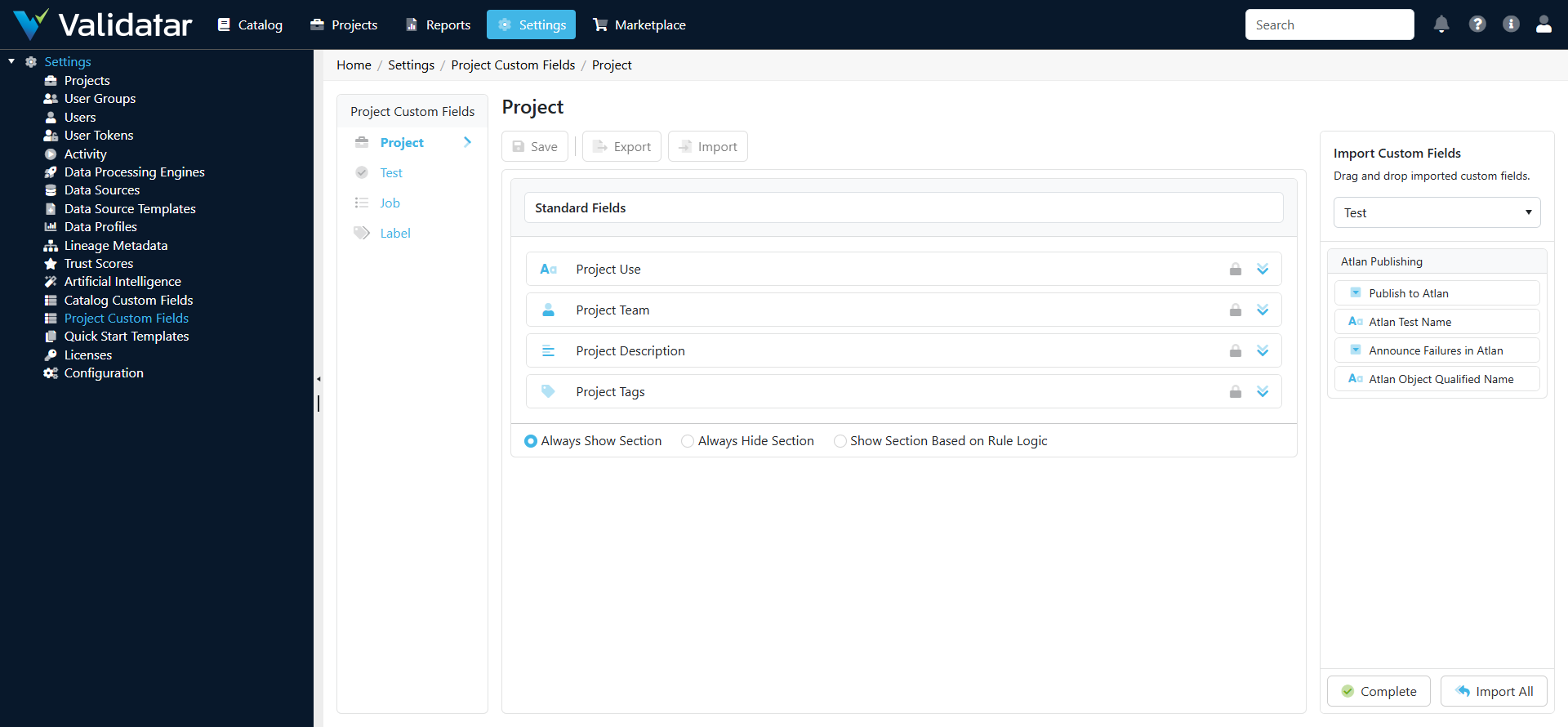
- Choose Get, then Import Directly. Validatar opens Settings > Project Custom Fields with an Import Custom Fields panel on the right.
- In the list of object types on the left, open Test. Import All adds the panel's sections to the object type that is open, so make sure it is Test.
- Choose Import All, then Save.
- Check that the Test page now has an Atlan Publishing section with the four fields above.
From the downloaded file
- Choose Get, then Download XML.
- In Settings > Project Custom Fields, open Test, choose Import, select the file and choose Next.
- Choose Import All, then Save.
Note: Choose Import All once. A second Import All adds the section again, and the page will not save until you remove the copy.
To create the fields by hand instead, add a section named Atlan Publishing on the Test object type with the names, reference keys, types and options in the table above, as described in Configuring Custom Fields. The reference keys must match exactly, because the template finds the fields by key.
Related
Note: The field set has been imported from the marketplace into a Validatar instance, and the template's Validatar client has written and read all four fields on a test there. It has not yet been used against a live Atlan tenant, so expect small adjustments after your first live run.