Overview
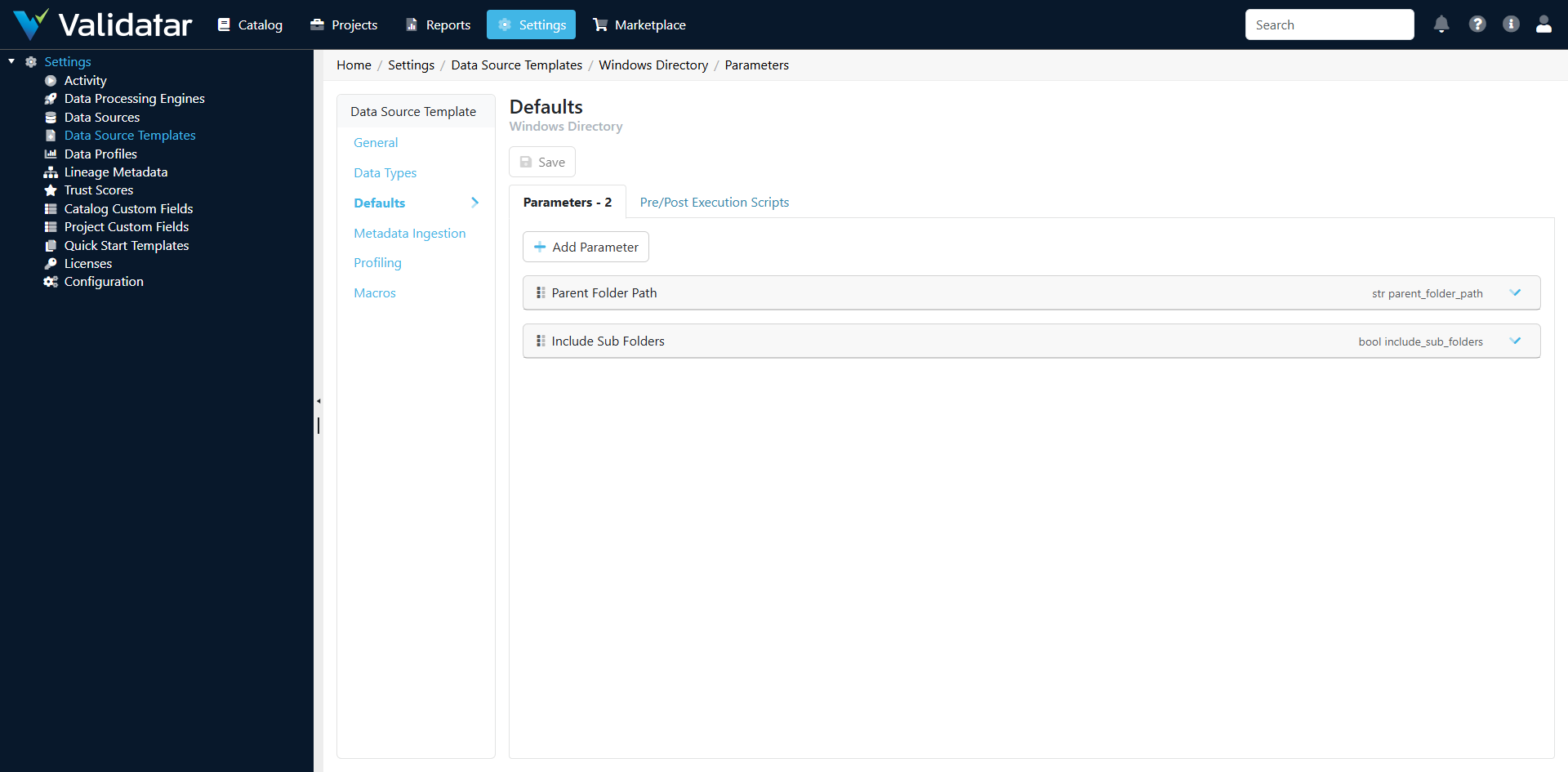
The Defaults tab on a data source template provides two capabilities: parameters and execution scripts. While execution scripts are available on all template types, parameters are primarily designed for Python-based (Script category) data source templates, where they serve as the primary mechanism for passing configuration values — like API keys, file paths, and connection details — into ingestion and profiling scripts at runtime.
For SQL-based templates, connection details are handled through the connection string and server/database fields on the connection itself. Python templates don't have a traditional connection string, so parameters fill that role.
Parameters
What Parameters Are
Template parameters are named, typed configuration values that you define once on the template and then set per-connection. They act as variables that are available to ingestion scripts, profiling scripts, and macros at runtime.
For example, a Python template for a REST API might define these parameters:
| Parameter | Type | Description |
|---|---|---|
api_base_url |
String | The base URL of the API |
api_key |
Secret | Authentication key |
page_size |
Integer | Number of records per request |
include_archived |
Boolean | Whether to include archived records |
environment |
Dropdown | Which environment to connect to (prod, staging, dev) |
When someone creates a data source using this template, they fill in these parameter values on their connection configuration. The values are then available in any Python script the template runs.
Parameter Types
| Type | Input | Use For |
|---|---|---|
| String | Free text input | URLs, file paths, schema names, any text value |
| Integer | Numeric input | Page sizes, timeouts, row limits, port numbers |
| Boolean | Checkbox | Feature flags, on/off toggles |
| Dropdown | Selection from predefined options | Environments, modes, fixed-choice configurations |
| Secret | Masked text input | API keys, passwords, tokens — stored encrypted |
Note: Secret parameters are stored encrypted and are never displayed in plain text after being saved. Use this type for any sensitive credential.
Defining Parameters
To add a parameter to a template:
- Open the template and navigate to Defaults > Parameters
- Click Add to create a new parameter
- Configure the parameter:
- Name — Display name shown to users (e.g., "API Base URL")
- Reference Key — The key used to access this parameter in scripts (e.g.,
api_base_url) - Type — One of the five types above
- Help Text — Description shown to users when configuring the parameter
- Options — For Dropdown type only, the list of available choices
- Save
How Parameters Are Consumed
In Python ingestion and profiling scripts, parameters are accessible through the script's execution context. When Validatar runs a script, it injects all parameter values for the current connection, making them available as variables the script can reference.
Parameters are also available in macro scripts via the {{parameterKey}} replacement syntax, regardless of whether the template is SQL-based or Python-based.
Best Practices for Parameters
- Use descriptive reference keys —
api_base_urlis better thanparam1. These keys appear in scripts, so readability matters. - Always use Secret type for credentials — Never store API keys, passwords, or tokens as plain String parameters.
- Provide help text — Users configuring connections will see these descriptions. Clear help text reduces setup errors.
- Set sensible defaults — For optional parameters, document the default behavior in the help text so users know what happens if they leave it blank.
- Use Dropdown for constrained choices — When a parameter has a fixed set of valid values, use Dropdown instead of String to prevent typos and invalid configurations.
Execution Scripts
What Execution Scripts Are
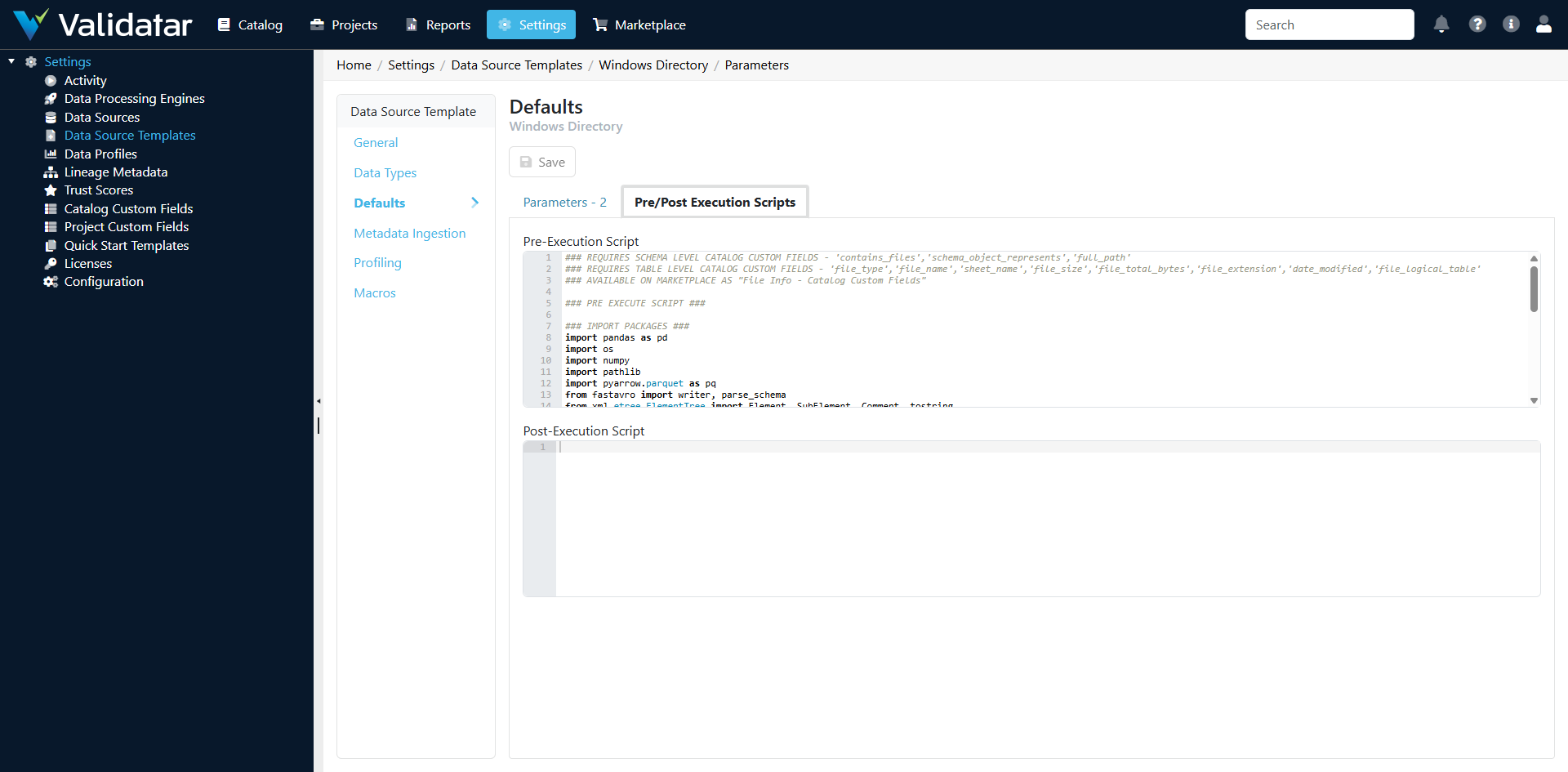
Execution scripts are SQL or Python scripts that run automatically before and/or after every query Validatar executes against a connection using this template. They provide a way to set up the session environment before any work begins and clean up afterward.
Pre-Execution Scripts
A pre-execution script runs before every query. Common use cases:
- Setting session variables — Configure session-level settings like timezone, query timeout, or result format
- Switching contexts — Set the active role, warehouse, or schema in platforms that support session-level context switching
- Enabling features — Turn on platform-specific features needed for Validatar's queries
Example — Snowflake session setup:
ALTER SESSION SET TIMEZONE = 'UTC';
ALTER SESSION SET QUERY_TAG = 'validatar';
USE WAREHOUSE VALIDATAR_WH;
Example — PostgreSQL search path:
SET search_path TO public, information_schema;
SET statement_timeout = '300s';
Post-Execution Scripts
A post-execution script runs after queries complete. Less commonly needed, but useful for:
- Resetting session state — Return session variables to their defaults
- Logging — Record that Validatar executed queries (for audit purposes)
- Cleanup — Remove temporary objects if any were created
Override at Connection Level
Execution scripts defined on the template are defaults. Individual connections can override them with connection-specific scripts. This is useful when most connections on a platform need the same setup, but a few have special requirements (e.g., a different warehouse or role).
The override is configured on the connection version, not on the data source or template.
How This Fits Into the Bigger Picture
Parameters and execution scripts handle the "setup" phase of working with a data source. Parameters give Python templates the configuration they need to connect and query external systems. Execution scripts ensure the database session is in the right state before Validatar runs ingestion, profiling, or test queries.
These defaults flow into every operation the template performs — they're consumed by the metadata ingestion scripts, profiling configuration, and macros covered in the following articles.
For the end-to-end view, see Data Source Templates: The Complete Picture.