Overview
The Data Source Templates page is your central hub for managing all templates in your Validatar environment. From here you can create new templates from scratch, import templates from files or the Validatar Marketplace, export templates to share with other environments, and manage the lifecycle of existing templates.
Navigate to Settings > Data Source Templates to access the template list.
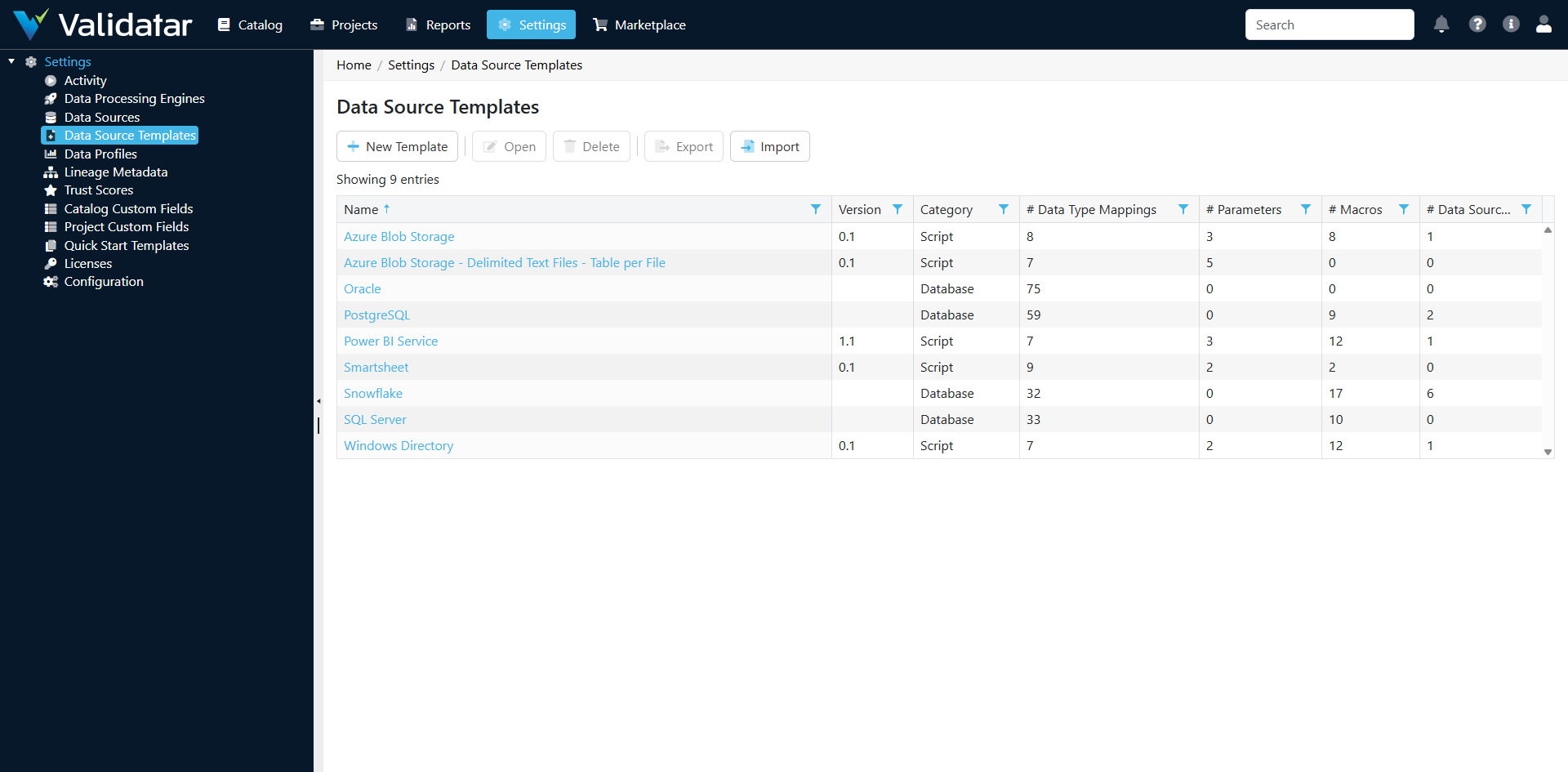
The Template List
The template list displays all templates in your environment with key information at a glance:
| Column | Description |
|---|---|
| Name | The template name |
| Version | Version identifier (e.g., "2024.3") |
| Category | Connection category: Database, Script, File, Snowflake Engine, or Databricks Engine |
| Status | Whether the template is active or inactive |
From the list, you can:
- New — Create a blank template
- Open — Edit an existing template
- Activate / Deactivate — Toggle whether a template is available for use
- Export — Download a template as an XML file
- Import — Load a template from an XML file
Creating a New Template
Click New to open the template editor with a blank General tab. The other tabs (Data Types, Defaults, Metadata Ingestion, Profiling, Macros) become available after you save the initial configuration.
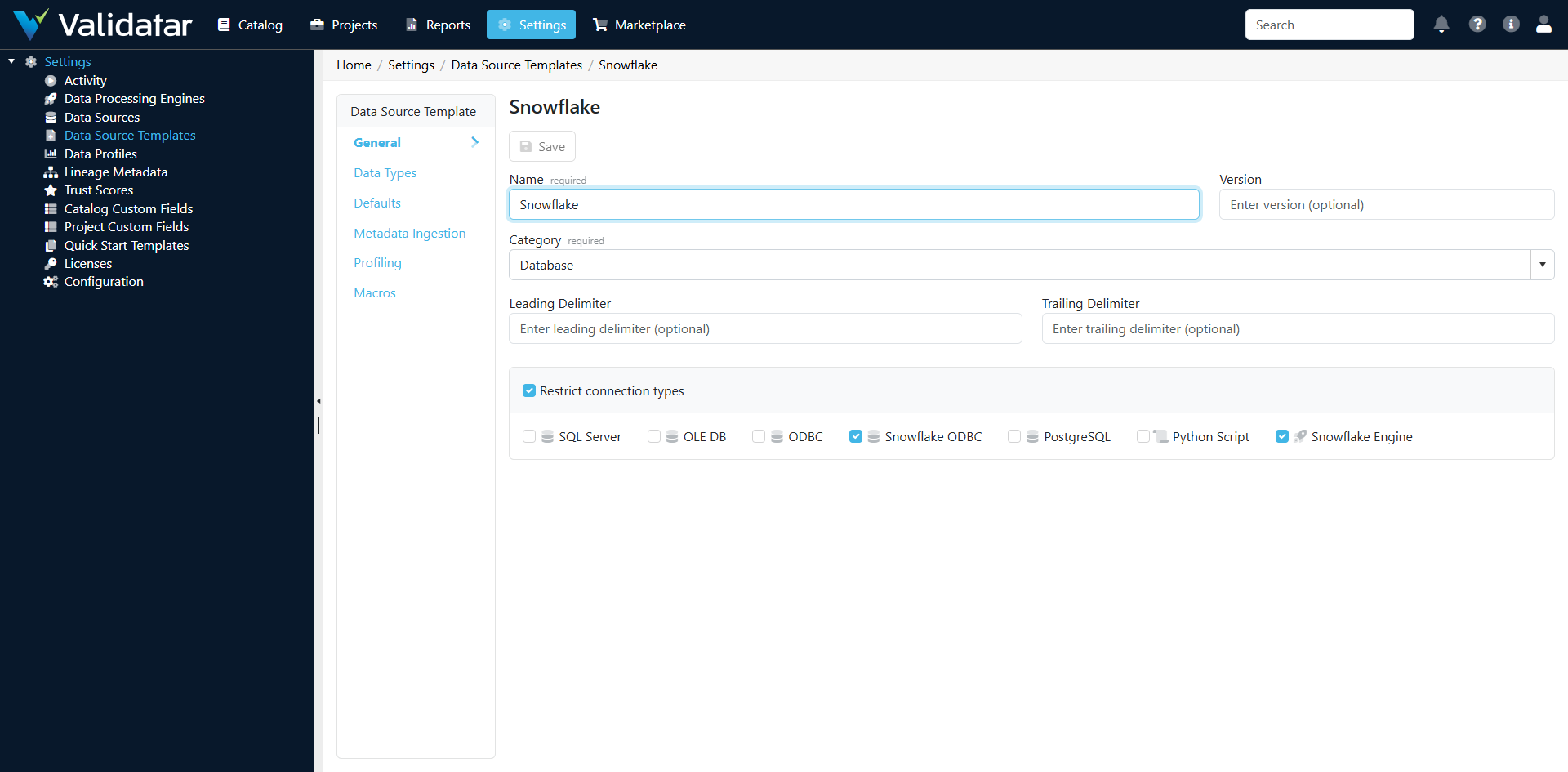
General Tab Fields
| Field | Description |
|---|---|
| Name | A descriptive name for the template (e.g., "Snowflake", "SQL Server 2019", "REST API via Python") |
| Version | Free-text version identifier. Use this to track template revisions. |
| Connection Category | The fundamental type of connectivity this template supports (see below) |
| Connection Types | Which specific connection types can use this template. If "Restrict Engines" is enabled on a connection type, only explicitly associated templates appear. |
| Leading Delimiter | The character used to quote the beginning of identifiers (e.g., [ for SQL Server, " for PostgreSQL and Snowflake) |
| Trailing Delimiter | The character used to close quoted identifiers (e.g., ] for SQL Server, " for PostgreSQL and Snowflake) |
Connection Categories
The connection category determines the fundamental behavior of the template — particularly how metadata ingestion and profiling work:
| Category | Use For | Ingestion Style |
|---|---|---|
| Database | Standard SQL databases (SQL Server, PostgreSQL, MySQL, etc.) | SQL queries at schema, table, and column levels |
| Script | Python-based sources (APIs, files, custom connectors) | Single Python script returning DataFrames |
| File | File-based data sources | File system metadata extraction |
| Snowflake Engine | Snowflake-native execution engine | SQL with Snowflake-specific system views |
| Databricks Engine | Databricks-native execution engine | SQL with Unity Catalog views |
Note: The connection category cannot be changed after the template is created. Choose carefully, as it determines the structure of all other tabs.
Identifier Delimiters
Delimiters tell Validatar how to quote object names (schemas, tables, columns) when building SQL queries for this platform. Getting this right is important — incorrect delimiters cause syntax errors in ingestion scripts, profiling queries, and test execution.
Common delimiter patterns:
| Platform | Leading | Trailing |
|---|---|---|
| SQL Server | [ |
] |
| PostgreSQL | " |
" |
| Snowflake | " |
" |
| MySQL | ` | ` |
Exporting Templates
Export packages a template and all its components (data types, ingestion scripts, profiling definitions, macros, parameters) into a single XML file. This is useful for:
- Sharing templates between Validatar environments (e.g., development → production)
- Backing up a template before making significant changes
- Publishing to the Validatar Marketplace
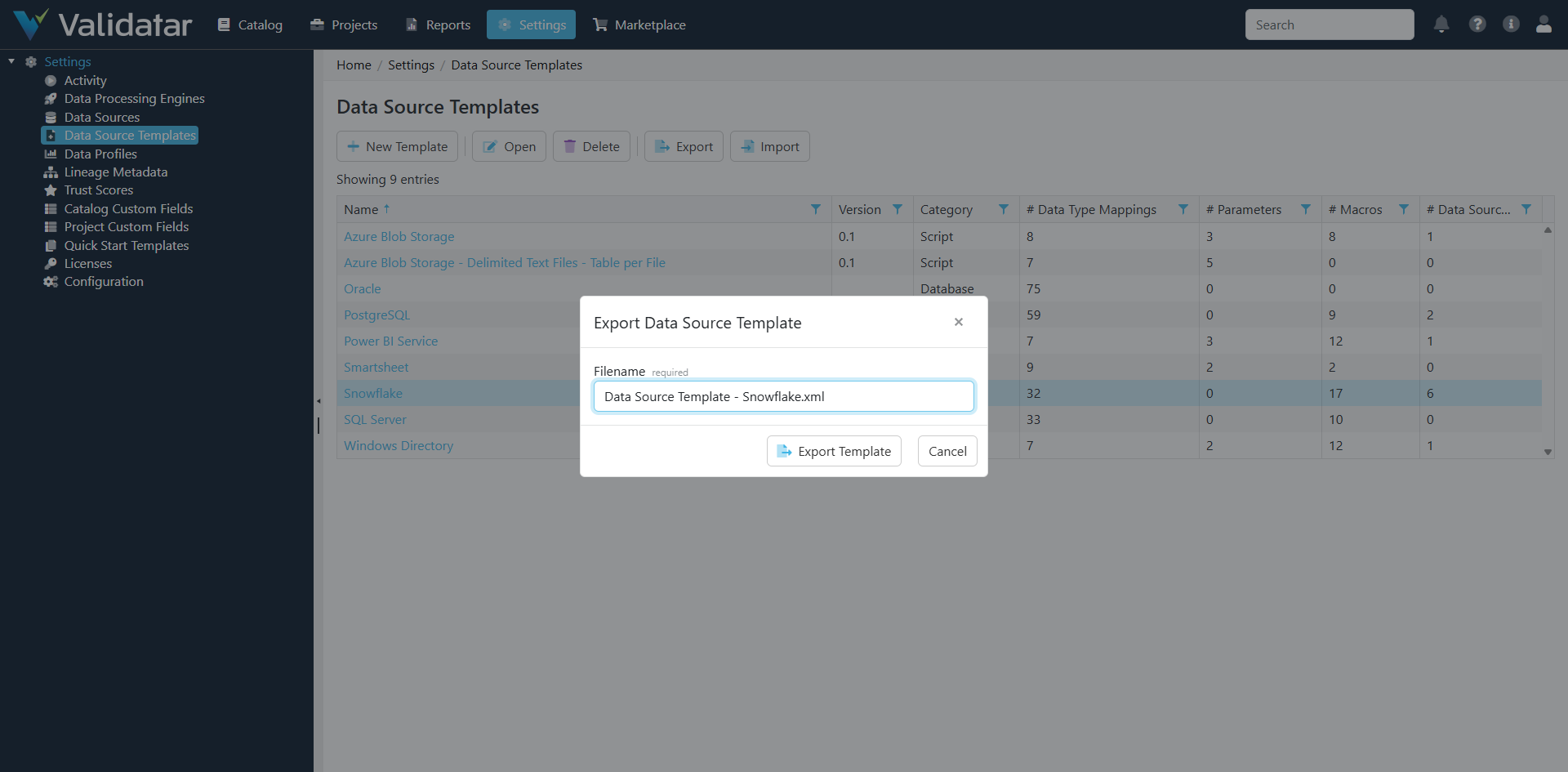
To export, select a template in the list and click Export. Choose what to include in the export and save the file.
Importing Templates
Import loads a template from an XML file. This can be a template you exported from another environment or one downloaded from the Validatar Marketplace.
To import:
- Click Import on the template list page
- Select the XML file
- Review the import preview — it shows what will be created or updated
- Confirm the import
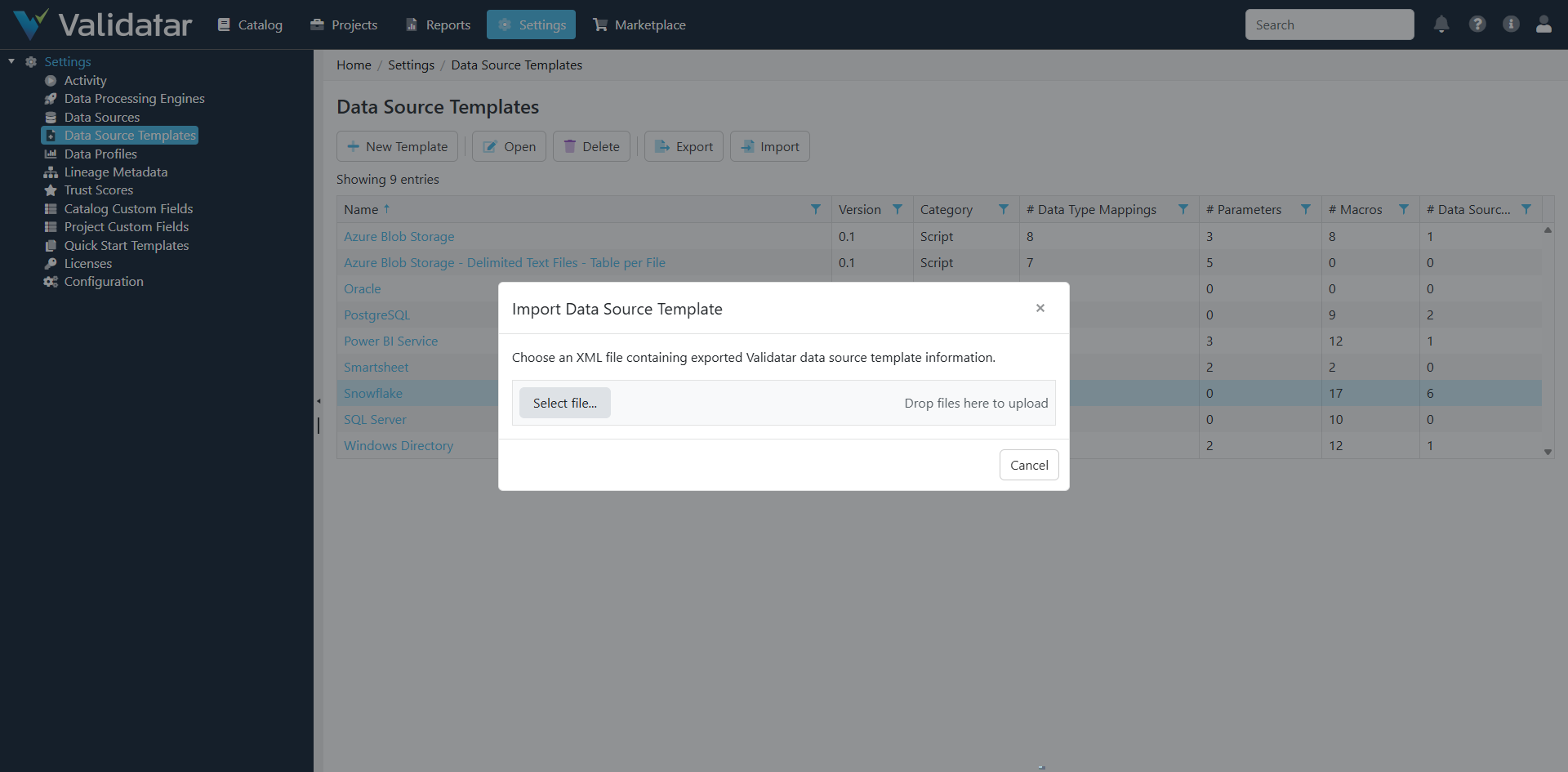
If a template with the same name already exists, the import dialog shows you the conflicts and lets you decide how to handle them (overwrite, rename, or skip).
Importing from the Marketplace
The Validatar Marketplace offers pre-built templates for common platforms. To find and import a marketplace template:
- Visit the Validatar Marketplace (accessible from within the application or at the Validatar website)
- Browse or search for templates by platform name
- Download the template XML file
- Use the Import function on the Data Source Templates page to load it
Marketplace templates come pre-configured with ingestion scripts, data type mappings, profile definitions, and macros optimized for the target platform. After importing, review the configuration and adjust any settings for your specific environment (e.g., schema filters, custom macros).
Managing Template Lifecycle
Activating and Deactivating
Deactivating a template hides it from the connection configuration UI — users won't be able to select it when setting up new connections. Existing connections that already use the template continue to function.
This is useful when you're developing a new template and aren't ready for others to use it, or when you're phasing out a template in favor of a newer version.
Template and Connection Type Relationships
The relationship between templates and connection types is many-to-many:
- A single template can serve multiple connection types (e.g., a generic ODBC template might work with several connection types)
- A single connection type can have multiple available templates (e.g., the Snowflake connection type might have templates for different Snowflake configurations)
When a connection type has "Restrict Engines" enabled, only templates explicitly associated with that connection type appear in the dropdown during connection setup. When disabled, all active templates in the same connection category are available.
Best Practices
- Version your templates — Use the version field to track changes over time. This helps when troubleshooting and when communicating changes to your team.
- Test before activating — Create your template, configure all tabs, and test with a single data source before activating it for general use.
- Export before modifying — Always export a backup of a working template before making significant changes to ingestion scripts, profiling, or macros.
- Use consistent naming — Adopt a naming convention that makes it clear what platform, version, and purpose each template serves (e.g., "Snowflake - Data Vault 2.0", "PostgreSQL 15 - Standard").
How This Fits Into the Bigger Picture
Creating a template is the first step in enabling Validatar to work with a new data platform. Once the template exists, you can create connections that use it, build data sources on those connections, ingest metadata, run profiles, and generate tests — all using the configuration the template provides.
The next articles in this section walk through each tab of the template editor in detail: Data Types, Default Parameters and Execution Scripts, Metadata Ingestion, Profiling, and Macros.
For the end-to-end view of how templates drive the entire data source lifecycle, see Data Source Templates: The Complete Picture.